I'm back after a long break!
Today I'll tell you how to record macro or closeup videos with your Nokia n-series. I'm not the inventor of the trick,I found the trick on the internet,but here I've explained the trick for you in detail,with a self explanatory video at the end of this article.
Well I own a Nokia N82,I can take pictures of very close objects with my N82,anything within the range of about 5-6cms from the lens,with the auto-focus camera. But I got very disappointed when I tried to record videos of closer objects(like phone's screen,or a book's page), because all the macro videos came blurry.
But,now I'll tell you how to overcome this-
Step1- Slide your N82's back camera cover,camera application will launch.
Step2- Choose video mode.
Step3- Now the tricky part! Gently hit the N82(I really mean gently,over impact may cause damage to the camera module) against your palm,while the camera facing towards the palm. You'll get an idea that how much force to apply,from my video below. Now focus the phone to any close object,and see the difference! If your videos are still blurry,try hitting the phone again.
Step4- Now start recording and enjoy the full potential of your Nseries!
But how and why this trick works? As far I've understood,these older generation phones have a bulkier camera module,allowing more gap for the lens to move within, so when hitting them against any surface,the lens moves forward; thus changing the focal length of the module temporarily and changing the focus to nearer objects. And again when using the camera in Image mode,auto focus motor will again bring the lens to preset position,canceling the effect of this trick. This tricks does not work on modern n-series phones with compact camera module,like N79,on which I also tried the trick.
This trick may also work on other Nseries phones of that times like N95,N95 8GB,N73 etc.
Warning- Do it AT YOUR OWN RISK. I'm not responsible anyways for any damage of your phone or camera. I use this on my N82 whenever I need to take videos of any close object,and I've not faced any problem with my phone's camera still now.
Showing posts with label Nokia. Show all posts
Showing posts with label Nokia. Show all posts
Saturday, June 4, 2011


Friday, April 1, 2011
How To Send A Multimedia Email Right From Your Phone
Today I'll tell you how to send a photo,video or a song(or anything) with an email right from your phone. Yes,you can take a picture,or record a video on your mobile phone and send that via email to anybody,anywhere in the world free of cost! So,why to pay for MMS?
It's a very very simple tutorial,and I'm sure many of you might know about it,but for those who doesn't know-
One more thing,I've written this article by considering Gmail,you can also do this on any email service,like Yahoo,Rediff. Process will be more or less same. And I've used Opera Mini 4.3,you can do it with any version of Opera Mini,as Opera Mini is coming preloaded with many phones.
Step1. Go to www.gmail.com or yahoo or rediff whatever you use.
Step2. Login with your user name or password.
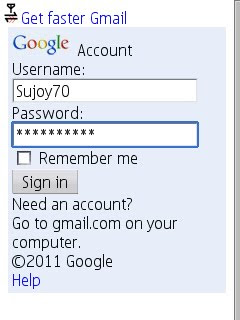
Step3. For Gmail,go to at the bottom of the page,and choose "Compose Mail' option.
Step4. On the next page,again go to bottom and choose "basic HTML" option.
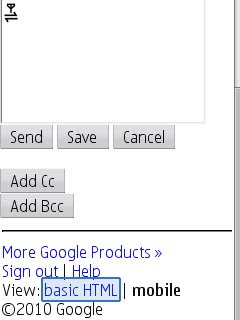
Step5. Next page again choose "Compose Mail".
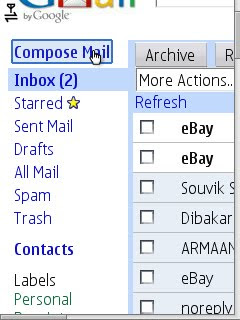
Step6. On the next page,a email layout will come as you see on your computer. In the "To" field,enter the email address whom you want to send the email,give a subject in "Subject" field.
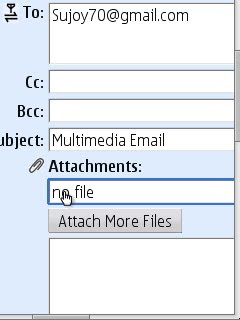
Step7. Now enter in the attachment field,it will ask for the location of the file. Suppose you want to send a photo from your memory card's Image folder,navigate to the file and add the file for attachment.
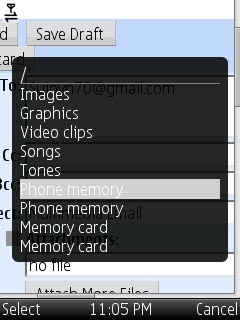
Step8. Press "Send" option at the bottom. It will take a little time as it will first upload the file(s) to the server,then the text. Wait,don't press Cancel or End button.
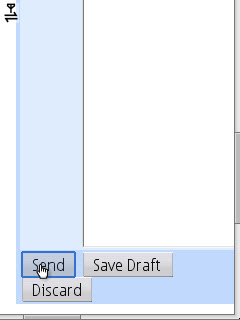
Step9. Now it will show your message has been send.
Step9. You've sent a multimedia email! Now sign out from gmail.
That's all!
If you like my post,please follow me by the "Follow" option at the top right section of this blog. You can also follow me on Orkut,my id is Sujoy70.
Thanks for reading!
It's a very very simple tutorial,and I'm sure many of you might know about it,but for those who doesn't know-
One more thing,I've written this article by considering Gmail,you can also do this on any email service,like Yahoo,Rediff. Process will be more or less same. And I've used Opera Mini 4.3,you can do it with any version of Opera Mini,as Opera Mini is coming preloaded with many phones.
Step1. Go to www.gmail.com or yahoo or rediff whatever you use.
Step2. Login with your user name or password.

Step3. For Gmail,go to at the bottom of the page,and choose "Compose Mail' option.
Step4. On the next page,again go to bottom and choose "basic HTML" option.

Step5. Next page again choose "Compose Mail".

Step6. On the next page,a email layout will come as you see on your computer. In the "To" field,enter the email address whom you want to send the email,give a subject in "Subject" field.

Step7. Now enter in the attachment field,it will ask for the location of the file. Suppose you want to send a photo from your memory card's Image folder,navigate to the file and add the file for attachment.

Step8. Press "Send" option at the bottom. It will take a little time as it will first upload the file(s) to the server,then the text. Wait,don't press Cancel or End button.

Step9. Now it will show your message has been send.
Step9. You've sent a multimedia email! Now sign out from gmail.
That's all!
If you like my post,please follow me by the "Follow" option at the top right section of this blog. You can also follow me on Orkut,my id is Sujoy70.
Thanks for reading!
Monday, March 21, 2011
How To Make A Wireless FM Antenna For Any Mobile Phone
Today I'll tell you how to make a wireless FM antenna for any mobile phone which have 3.5mm earphone jack.
Step 1- Take any cheap 3.5mm earphone(which you could destroy!).
Step2- Cut the earphone wire from from top of the pin.
Step3- Take the pin and remove all plastic insulation attached to it.
Step4- Take a small length of copper wire(about 10-12cm long).
Step5- Attach one end of the copper wire to the top pin of the jack, if you want,you can solder it also. Now connect the jack to your phone and open FM radio,tune in to your favorite channel. Depending on the signal strength at your house,your phone should catch FM signal.
Step6- Your FM antenna is ready, you can attach other end of the wire to the pin above the flat pin,as shone in the figure below. That will make a loop.

Step7- If you want,you can cover the portion above flat pin with tape or thread for grip and for decoration,as I did.

You can watch my video tutorial for this, which I have uploaded to Youtube.
Here-
http://www.youtube.com/watch?v=Lm7V-JrDiwk
Or Here-
That's all! Enjoy FM on the go!
If you like my post,please follow me by the "Follow" option at the top right section of this blog. You can also follow me on Orkut,Twitter,Facebook,my id is Sujoy70.
Thanks for reading!
N.B- This tutorial is for education purpose only. I'm not liable for any damage occurred for trying this. I've made that and using that personally without any kind of problem,as you can see in my Youtube video.
Step 1- Take any cheap 3.5mm earphone(which you could destroy!).
Step2- Cut the earphone wire from from top of the pin.
Step3- Take the pin and remove all plastic insulation attached to it.
Step4- Take a small length of copper wire(about 10-12cm long).
Step5- Attach one end of the copper wire to the top pin of the jack, if you want,you can solder it also. Now connect the jack to your phone and open FM radio,tune in to your favorite channel. Depending on the signal strength at your house,your phone should catch FM signal.
Step6- Your FM antenna is ready, you can attach other end of the wire to the pin above the flat pin,as shone in the figure below. That will make a loop.

Step7- If you want,you can cover the portion above flat pin with tape or thread for grip and for decoration,as I did.

You can watch my video tutorial for this, which I have uploaded to Youtube.
Here-
http://www.youtube.com/watch?v=Lm7V-JrDiwk
Or Here-
That's all! Enjoy FM on the go!
If you like my post,please follow me by the "Follow" option at the top right section of this blog. You can also follow me on Orkut,Twitter,Facebook,my id is Sujoy70.
Thanks for reading!
N.B- This tutorial is for education purpose only. I'm not liable for any damage occurred for trying this. I've made that and using that personally without any kind of problem,as you can see in my Youtube video.
Wednesday, March 9, 2011
How to do Search Engine Optimization(SEO!) on Opera Mini 4.2, Opera Mini 5.1
Today I'll tell you how to add your own search engine in Opera Mini 4.2 and Opera Mini 5.1 ,also in Opera Mobile 10. First of all,what this search engine optimization means? I'm giving an example- Suppose you want to search pictures of Taj Mahal in Google. What you generally do? You open Opera Mini,go to www.google.com and then images,then you type Taj Mahal in the search field. But after SEO,you can search anything right from your browser!
Lets get started,you need Opera Mini 4.2 installed on your mobile,you can download it from m.opera.com. Now go to any website from which you want to search something,like www.images.google.com. Enter on the search field,
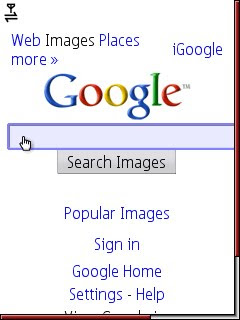
press options,and press "Create Search".
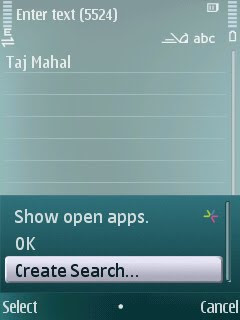
On the next window,press save. You're done!
Now for search,press #9 quickly,you'll see Google on the bottom.
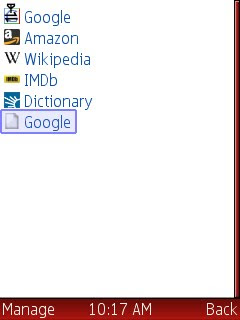
Press joystick,type your search term(eg-Taj Mahal) ,press joystick,and lots of pictures of Taj Mahal will appear in front of you! Like This-
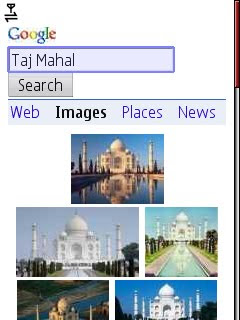
Isn't it easy?
Now for Opera Mini 5.1 and Opera Mobile 10,
first you have to copy the search address,for that, open Opera Mini 4.2,go to search shortcuts by pressing #9, Google is at the bottom,press Manage then choose second option "Edit",
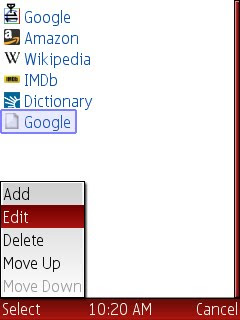
on the next window,copy the whole text.
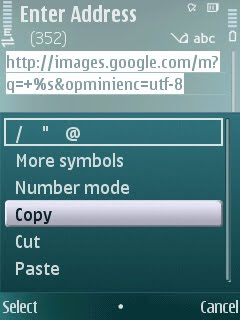
Now open Opera Mini 5.1,press #2,press joystick down. You'll see three search shortcuts are given there. Now press and hold joystick on any search shortcut,choose "Edit";
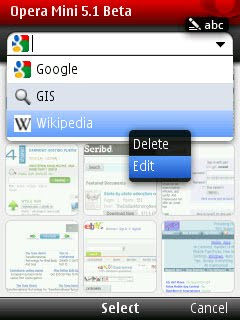
on the next window,under the Address field,edit and paste the copied text,press Done.
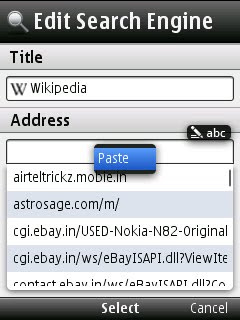
Like this-
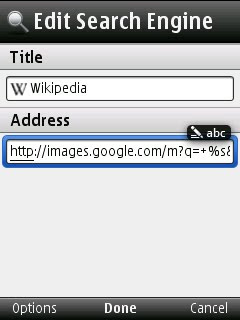
Now for searching anything,press #2 quickly,choose your search engine,type your search term,press enter. That's all!
If you want,you can add more than one search engine in Opera Mini 4.2 but in Opera Mini 5.1, unfortunately you can add only three search engines of your own.
Thanks for reading!
Lets get started,you need Opera Mini 4.2 installed on your mobile,you can download it from m.opera.com. Now go to any website from which you want to search something,like www.images.google.com. Enter on the search field,

press options,and press "Create Search".

On the next window,press save. You're done!
Now for search,press #9 quickly,you'll see Google on the bottom.

Press joystick,type your search term(eg-Taj Mahal) ,press joystick,and lots of pictures of Taj Mahal will appear in front of you! Like This-

Isn't it easy?
Now for Opera Mini 5.1 and Opera Mobile 10,
first you have to copy the search address,for that, open Opera Mini 4.2,go to search shortcuts by pressing #9, Google is at the bottom,press Manage then choose second option "Edit",

on the next window,copy the whole text.

Now open Opera Mini 5.1,press #2,press joystick down. You'll see three search shortcuts are given there. Now press and hold joystick on any search shortcut,choose "Edit";

on the next window,under the Address field,edit and paste the copied text,press Done.

Like this-

Now for searching anything,press #2 quickly,choose your search engine,type your search term,press enter. That's all!
If you want,you can add more than one search engine in Opera Mini 4.2 but in Opera Mini 5.1, unfortunately you can add only three search engines of your own.
Thanks for reading!
Saturday, December 25, 2010
How to backup all Messeges on a S60v3 S60v5 phone like 5800,N79
I'm giving you the easiest method to backup all your messeges collection on a Symbian S60v3/v5 phone. Let's get started! Remove your memory card from your phone and connect it to pc via a card reader. Or connect your phone to pc in "Mass Storage Mode". Now open the folder named "private",inside the folder 'private', find another folder named "1000484b". Open it,there's a folder named "Mail2", copy the folder and keep it in a safe place. This folder contains all your messeges.
When you have to restore the collection(like after formatting your phone),simply restore the "Mail2" folder to it's respective position, i.e- private/1000484b .There may be already the folder "Mail2",just replace it.
After that,go to Messaging > press Options > Settings > Other; highlight "Memory In Use",select E:Memory Card. It'll ask "Copy All Messages To New Memory?" select No,then it'll ask "Keep Original Messages?" (if you press NO,it'll delete previous messages stored in phone memory,and if you press YES it'll switch to Memory Card without deleting your phone memory messages.)press yes or no accordingly. It'll then process(don't press end or minimize) and you are done!
When you have to restore the collection(like after formatting your phone),simply restore the "Mail2" folder to it's respective position, i.e- private/1000484b .There may be already the folder "Mail2",just replace it.
After that,go to Messaging > press Options > Settings > Other; highlight "Memory In Use",select E:Memory Card. It'll ask "Copy All Messages To New Memory?" select No,then it'll ask "Keep Original Messages?" (if you press NO,it'll delete previous messages stored in phone memory,and if you press YES it'll switch to Memory Card without deleting your phone memory messages.)press yes or no accordingly. It'll then process(don't press end or minimize) and you are done!
Subscribe to:
Posts (Atom)